Progressive Web App
 Dr.Reeves
141
Downloads
100%
Positive (4 reviews)
1 month ago
Last Updated
Manual Plugin Import
- Log in to your panels admin area.
- Navigate to the Plugins section.
- Click the Import from File icon ()
- Upload the downloaded ZIP file and complete the install.
PWA Plugin for Pelican Panel
Transform your Pelican Panel into a full-fledged Progressive Web App. Your users can install it like a native app and get push notifications for all the important stuff.
What's Included
- Install your panel as an app on any device (desktop or mobile)
- Service worker that prompts users when updates are available
- Push notifications that work through the database or email
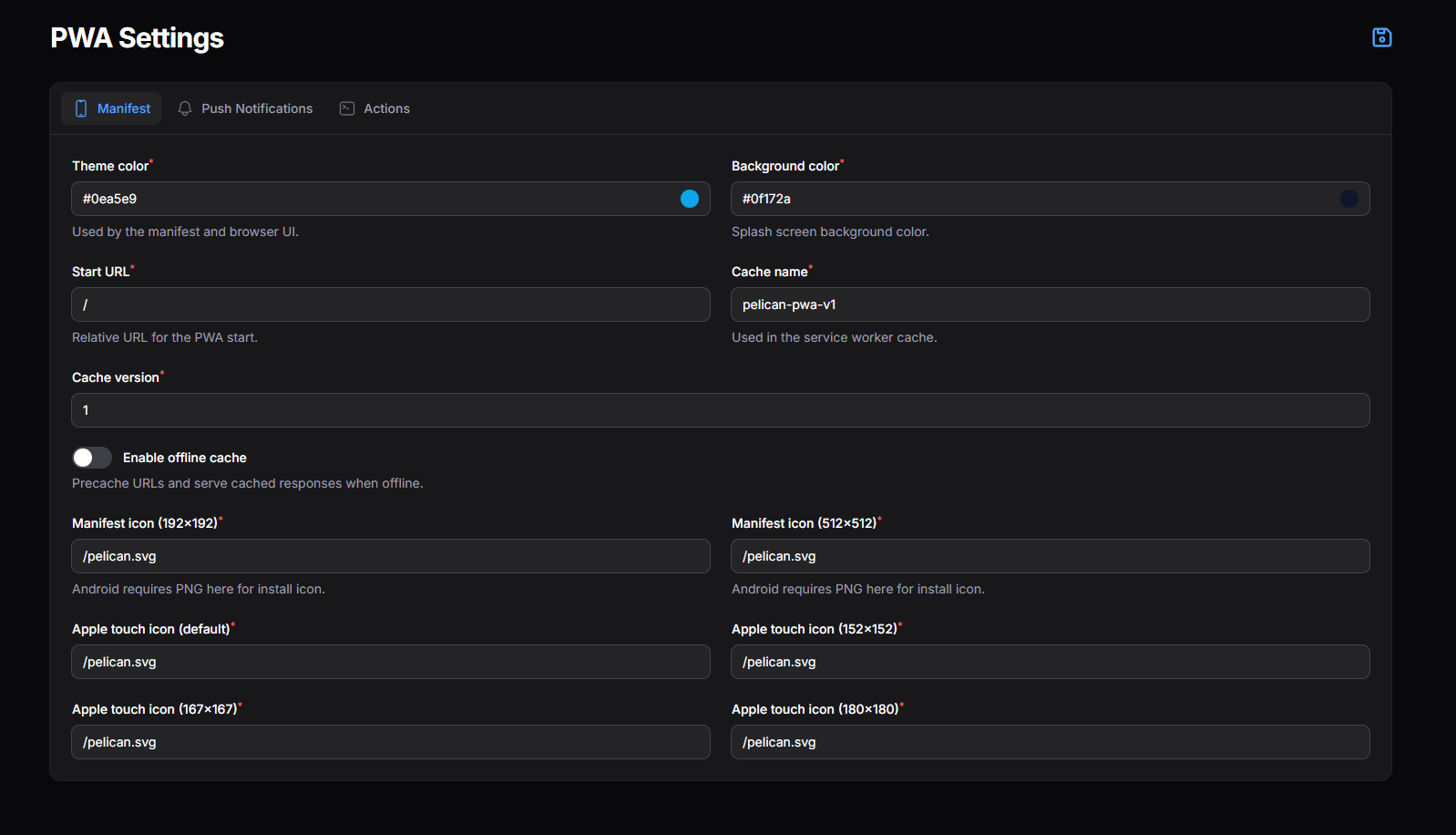
- Complete admin settings page for everything PWA-related
Before You Start
You'll need:
- Latest version of Pelican Panel
- HTTPS enabled (service workers won't run without it)
- A browser that supports PWAs
- PNG icons for Android (SVG doesn't cut it for install icons and notifications)
Getting It Installed
Through the Panel
- Download the plugin zip file
- Unzip it and remove any nested folders
- Rename the folder to just "pwa-plugin"
- Zip it back up
- Head to Admin → Plugins
- Click Import
- Install the plugin
- Configure your PWA settings
Manual Installation
cd /var/www/pelican/plugins
# Upload and extract pwa-plugin here
About the Composer Package
This plugin needs minishlink/web-push to send push notifications. It's listed in the plugin.json file so the panel should install it automatically.
If that doesn't work for some reason, you can install it yourself:
cd /var/www/pelican
composer require minishlink/web-push
Configuring PWA Settings
Go to Admin → PWA and you'll find options for:
- Theme and background colors
- Start URL
- Cache settings (name and version)
- Manifest icons (you'll want 192px and 512px versions)
- Apple touch icons for iOS devices
- Default icons for notifications and badges
- Push notification settings including VAPID keys
Everything saves to the database and falls back to your .env file if nothing's set.
Icon Setup (Read This!)
Here's the thing about Android: it needs PNG icons. Period. SVG and ICO files won't work reliably for either app installation or notifications.
What You Need
Put these PNG files somewhere accessible (like public/):
/favicon-192.png(for the app icon)/favicon-512.png(higher res version)/favicon-96.png(for the notification badge)- Apple touch icons at 152px, 167px, and 180px if you want custom iOS icons
Then just enter those paths in Admin → PWA.
Making the Icons
Try https://realfavicongenerator.net/ for a quick solution.
Or if you prefer command line, use ImageMagick:
cd /var/www/pelican/public/
convert logo.png -resize 192x192 favicon-192.png
convert logo.png -resize 512x512 favicon-512.png
convert logo.png -resize 96x96 favicon-96.png
Setting Up Push Notifications
How It Works
Getting Push Working
- Generate your VAPID keys
- Add them in Admin → PWA (or stick them in
.env) - Enable the push notifications feature
- Go to the PWA settings page and hit Subscribe to Push
Testing It Out
There's a Send Test Push button on the PWA settings page. Click it to make sure everything's working.
Quick Actions
You'll find quick action buttons in two places:
- The PWA settings page in admin
- The PWA tab on user profile pages
How Users Install the App
Desktop (Chrome, Edge, Brave)
- Open your panel in the browser
- Look for an install icon in the address bar (usually looks like a ⊕ or monitor icon)
- Click it, or go to the three-dot menu and choose "Install [App Name]"
- Confirm by clicking "Install"
- The app will show up on your desktop, in the Start menu, or Applications folder
You can also do it through the menu: three-dot menu → "Save and Share" → "Install page as app"
Android (Chrome, Samsung Internet, Edge)
- Open the panel in your mobile browser
- Either wait for the install banner at the bottom, or tap the three-dot menu
- Choose "Install app" or "Add to Home screen"
- On Samsung Internet it's "Add page to" → "Home screen"
- Tap "Install" when prompted
- The app icon appears on your home screen
- Tap it to launch in full-screen mode
It'll look and feel just like a native app.
iOS (Safari)
- Open the panel in Safari (has to be Safari, not Chrome)
- Tap the Share button at the bottom (the square with an arrow)
- Scroll and find "Add to Home Screen"
- Change the name if you want
- Tap "Add" in the top right
- Find the icon on your home screen and tap to open
Heads up: iOS has some limitations with PWAs. No background sync or push notifications, and it has to be installed through Safari specifically.
General Tips
- PWAs update themselves automatically when you're online
- Most work offline once installed
- To uninstall:
- Desktop: Right-click the app icon → Uninstall
- Android: Long-press → Uninstall or go through App info
- iOS: Long-press → Remove App
Enabling Push on Your Device
- Go to your profile
- Switch to the PWA tab
- Click "Request Notifications"
- Click "Subscribe to Push"
- Hit "Test Push" to verify
- You're all set!
When Things Don't Work
PWA Won't Install
- Double-check that HTTPS is enabled
- Make sure
manifest.jsonandservice-worker.jsare accessible - Verify you're using PNG icons in the manifest
- Try clearing your browser cache
Android Icons Missing
Android doesn't support SVG or ICO for app icons or notifications. Switch to PNG files.
Push Notifications Not Working
- Check that notification permissions are granted
- Verify VAPID keys are configured correctly
- Confirm
minishlink/web-pushis installed - Make sure the service worker registered successfully
License
GNU General Public License v3.0
Requirements
- File Size
- 65.09 KB
- License
- GPL-3.0