Minecraft Toolkit
 Blue Wolf
55
Downloads
100%
Positive (1 reviews)
4 weeks ago
Last Updated
Manual Plugin Import
- Log in to your panels admin area.
- Navigate to the Plugins section.
- Click the Import from File icon ()
- Upload the downloaded ZIP file and complete the install.
Minecraft Toolkit
Minecraft Toolkit is a Pelican Panel plugin for setting up and managing Minecraft servers directly from the server panel. It writes files through Wings, stores the selected software and installed packages per server, and blocks risky changes while the server is running.
Changelog
See CHANGELOG.md for version history and notable changes.
Current version: 1.2.0.
License and usage rights
Minecraft Toolkit is source-available, not open source. You may download and use the official plugin on your own Pelican Panel installation, but you may not redistribute it, reupload it, publish forks, publish modified versions, rename it, resell it, or release derivative versions.
Official distribution is only allowed through channels approved by Nico Egger / BlueIT, such as the official GitHub repository and the Pelican Hub. See LICENSE for the full terms.
No CurseForge API key is included in the public plugin source. CurseForge is temporarily disabled by default in public builds and can be enabled by administrators with a private backend proxy or a private local API key.
Features
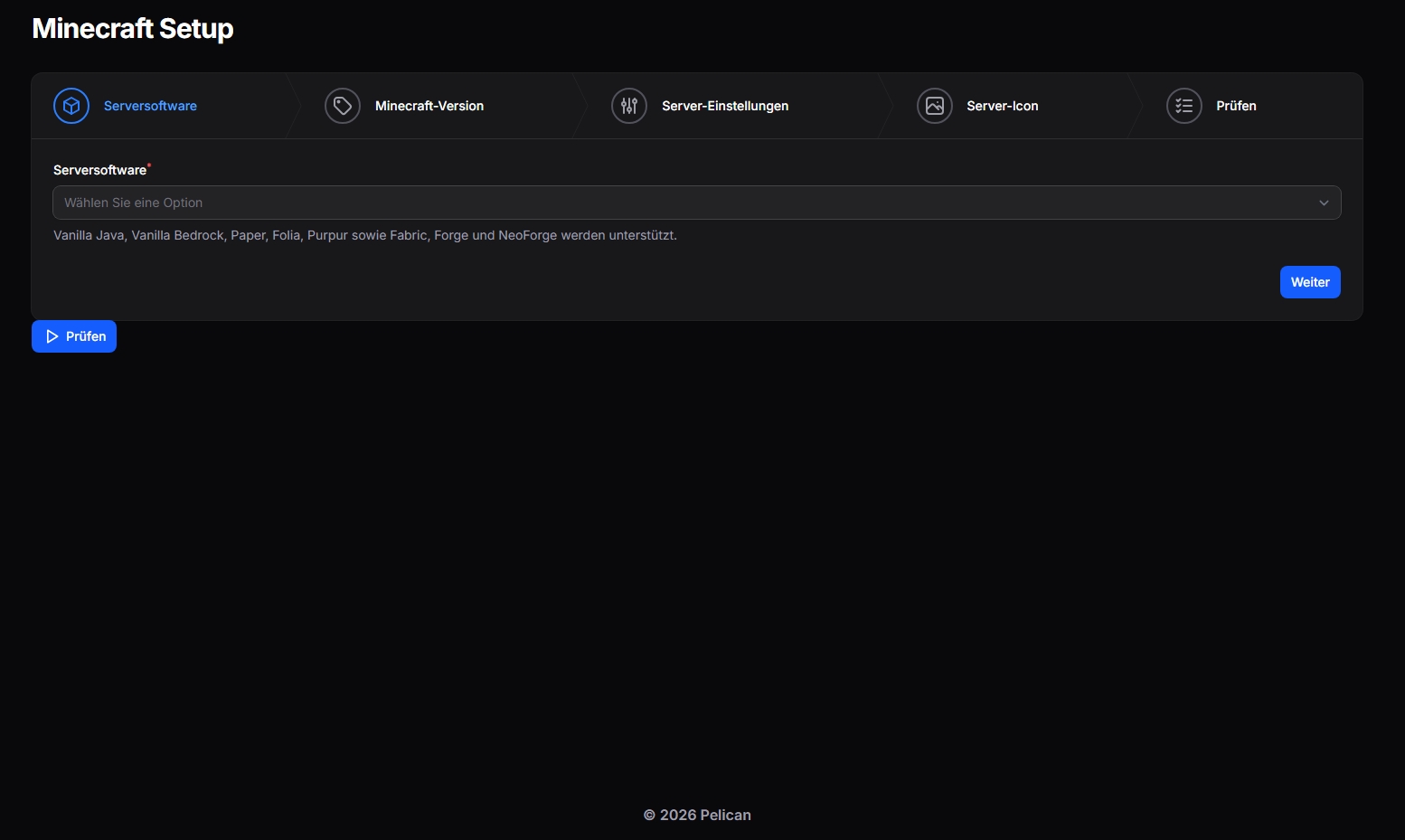
- Guided setup for Vanilla Java, Vanilla Bedrock, Paper, Folia, Purpur, Fabric, Forge, and NeoForge
- Automatic Minecraft and loader version selection from official sources
- Generation of
eula.txtandserver.properties - Optional plugin/mod selection during setup; selected packages are installed immediately after setup completes
- Installer opens with popular compatible packages before searching. The setup package browser is shown only inside the Mods/Plugins setup step and can load popular packages from the selected enabled source.
- MOTD formatter helper for Minecraft color and style codes
- Primary server port taken from the Pelican allocation
- Optional validated 64x64 PNG server icon
- Modrinth plugin installation for Paper, Purpur, and Folia
- Modrinth mod installation for Fabric, Forge, and NeoForge
- Optional CurseForge plugin and mod installation through a private Toolkit backend proxy or optional private local API key
- Required dependency auto-installation and optional dependency review
- Optional Geyser and Floodgate crossplay for Paper and Purpur, including Bedrock port, Floodgate auth-type, and Geyser MOTD patching
- Update checks for managed Modrinth, Geyser, and Floodgate packages
- Individual and bulk package updates
- Minecraft version changes with package compatibility checks
- File backups before setup, configuration changes, and package updates
- SHA verification when the package source provides a checksum
- Per-server overview, settings, action logs, and update history
All server files are accessed through Pelican's Wings API. The plugin does not require Panel and Wings to share a filesystem.
Requirements
- Pelican Panel compatible with
^1.0.0-beta34 - PHP 8.3 or newer with
curl,mbstring,openssl, andSimpleXML - Reachable Wings node
- A Minecraft-compatible Egg; Java servers need a Java image, Bedrock servers need an image with unzip and Bedrock runtime support
- HTTPS access from the Panel host to Mojang, PaperMC, PurpurMC, Fabric, Forge, NeoForge, Modrinth, and GeyserMC
- A stopped server for setup, package installation, updates, or configuration changes
- Permission to edit server files
- Permission to change the startup command when installing Fabric, Forge, NeoForge, or Vanilla Bedrock
No queue worker or scheduler is required. Update checks run only when a user starts them from the Minecraft Updater page.
Installation through Plugin Upload
- Create a ZIP whose top-level folder is named
minecrafttoolkit. - Open the Pelican admin plugin page and import the ZIP.
- Install and enable Minecraft Toolkit.
- Open the plugin settings and review the security and source options.
- Clear the Panel cache if the server navigation does not appear immediately.
The Pelican plugin installer discovers and runs the migrations in database/migrations.
Manual Installation
cd /var/www/pelican
cp -R /path/to/minecrafttoolkit plugins/minecrafttoolkit
php artisan p:plugin:install
php artisan optimize:clear
The directory name must remain minecrafttoolkit, because it must match the plugin ID in plugin.json.
First Server Setup
- Create a Pelican server with a Minecraft-compatible Egg.
- Assign a primary allocation.
- Stop the server.
- Open Minecraft Setup in the server sidebar.
- Select the server software and Minecraft version.
- For Fabric, Forge, or NeoForge, select a compatible loader version. Bedrock uses the current official Linux Bedrock Dedicated Server download.
- Configure the MOTD, world name, player limit, and gameplay settings.
- Optionally upload a 64x64 PNG server icon.
- For Paper or Purpur, optionally enable crossplay and select a Bedrock allocation. Folia intentionally does not expose the crossplay switch because Paper plugin compatibility is not guaranteed.
- Optionally select multiple compatible plugins or mods that should be installed directly after setup.
- Review the setup and start it.
Existing target files are moved to:
/.minecraft-toolkit/backups/YYYY-MM-DD-HH-mm-ss/
Forge and NeoForge use their official --installServer flow during the first server start. Vanilla Bedrock downloads the official Linux Bedrock Dedicated Server ZIP and extracts it during the first server start. That first launch creates run.sh and the loader libraries and can take several minutes.
Supported Server Software
| Software | Package type | Package directory | Notes |
|---|---|---|---|
| Vanilla Java | none | none | Official Mojang server JAR |
| Paper | plugins | /plugins |
Supports Modrinth and crossplay; CurseForge optional when enabled |
| Purpur | plugins | /plugins |
Supports Modrinth and crossplay; CurseForge optional when enabled |
| Folia | plugins | /plugins |
Supports plugin installation with Folia compatibility warnings |
| Fabric | mods | /mods |
Uses the official Fabric server launcher |
| Forge | mods | /mods |
Runs the official installer on first start |
| NeoForge | mods | /mods |
Runs the official installer on first start |
The Java version in the server image must support the selected Minecraft version. Minecraft Toolkit does not replace the server's Docker image.
Package Installer
After setup, open Minecraft Installer:
- Select Modrinth, or CurseForge when it has been enabled by an administrator.
- Browse the automatically loaded popular compatible package list or search for a project.
- Review the selected compatible version and its dependencies.
- Stop the server if it is running.
- Install the package.
Search results are filtered by the configured Minecraft version, server loader, project type, and server-side compatibility. Client-only projects are blocked. Downloads are restricted to HTTPS and validated JAR filenames.
Required dependencies reported by Modrinth or CurseForge are installed automatically before the selected package. Optional dependencies are shown for review but are not installed automatically.
CurseForge is temporarily disabled by default in public builds. Administrators can enable it by setting MINECRAFT_TOOLKIT_CURSEFORGE_ENABLED=true and configuring either a private Toolkit-compatible backend proxy or a private direct CurseForge API key. If CurseForge is disabled or no valid proxy/key is available, CurseForge is hidden from server users while Modrinth continues to work.
CurseForge does not consistently expose whether a mod is client-only or server-compatible. The Toolkit shows a warning for ambiguous CurseForge mods and requires the user to verify the project description before installation.
Crossplay
Crossplay is available only for Paper and Purpur.
When enabled, Minecraft Toolkit:
- Downloads Geyser-Spigot and Floodgate-Spigot from GeyserMC
- Verifies their SHA-256 checksums
- Installs them as protected managed system packages
- Stores the selected Bedrock allocation
- Patches Geyser to use the Bedrock port and Floodgate authentication
Geyser normally creates its configuration after the first server start. If plugins/Geyser-Spigot/config.yml did not exist during setup:
- Start the server once.
- Stop the server again.
- Open Minecraft Settings.
- Click Crossplay-Konfiguration anwenden.
The existing Geyser configuration is backed up and only the relevant YAML values are changed.
Package Updates
Open Minecraft Updater and click Updates prüfen. Checks are available while the server is running because they do not modify files.
Before installing an update:
- Stop the server.
- Update one package or click Alle verfügbaren Updates installieren.
- Start the server and verify its console and plugin or mod list.
Before each update check, Minecraft Toolkit compares its database with the actual loaded plugin versions from logs/latest.log where available. If the real installed version differs from the database, the database is synchronized first and the package is not falsely marked as current. For each real update, the old JAR is moved into the Toolkit backup directory before the new file is downloaded. If the download or checksum validation fails, the plugin attempts to restore the old file and leaves the database on the previous version.
The updater currently supports:
- Managed Modrinth plugins
- Managed Modrinth mods
- Managed CurseForge plugins and mods
- Geyser
- Floodgate
The updater also reports recent plugin load failures detected in logs/latest.log, including missing plugin dependencies and Java class-version incompatibilities. Manually uploaded files and the server software itself are not updated automatically.
Changing the Minecraft Version
Open Minecraft-Version ändern after the initial setup:
- Select a new Minecraft version.
- For Fabric, Forge, or NeoForge, select a compatible loader version. Bedrock uses the current official Linux Bedrock Dedicated Server download.
- Run the compatibility check.
- Review every managed plugin, mod, dependency, and crossplay package.
- Stop the server.
- Choose the available change strategy.
Package statuses:
- Compatible: the installed package version supports the target.
- Update required: a compatible Modrinth version will be installed.
- System package update: Geyser or Floodgate will be refreshed.
- Incompatible: no compatible version was found.
- Unknown: the source is unavailable or has no reliable compatibility data.
When all packages are compatible, the safe change action is available. If blocking packages exist, the user can either back up and disable those packages or explicitly accept the risk and keep them installed.
The server software stays the same during this operation. For example, the page can change Paper 1.21.4 to another Paper version, but it does not convert Paper to Fabric.
The current server artifact and affected package files are backed up before replacement. server.properties is preserved. Forge and NeoForge generate their new loader runtime on the next server start.
Server Settings
The Minecraft Settings page includes quick fields, paged fields for the standard Java server.properties keys, and a full raw server.properties editor. This allows all normal Minecraft properties to be changed while preserving unknown or newer settings. The server must be stopped before saving.
Available settings include:
- MOTD
- Maximum players
- View distance
- Simulation distance
- Online mode
- Whitelist
- PVP
- Flight
- Bedrock allocation and crossplay configuration for Paper/Purpur
Plugin Configuration
Administrators can configure Minecraft Toolkit from the Pelican plugin settings page.
| Variable | Default | Description |
|---|---|---|
MINECRAFT_TOOLKIT_ENABLED |
true |
Enables the plugin |
MINECRAFT_TOOLKIT_ADMINS_ONLY |
false |
Restricts modifying Toolkit actions to administrators |
MINECRAFT_TOOLKIT_BACKUP_BEFORE_OVERWRITE |
true |
Backs up setup target files before replacement |
MINECRAFT_TOOLKIT_MODRINTH_ENABLED |
true |
Enables Modrinth search and installation |
MINECRAFT_TOOLKIT_CURSEFORGE_ENABLED |
false |
Enables CurseForge when a private proxy or private direct key is configured |
MINECRAFT_TOOLKIT_CURSEFORGE_PROXY_URL |
empty | Optional private Toolkit-compatible CurseForge proxy URL |
MINECRAFT_TOOLKIT_CURSEFORGE_PROXY_SECRET |
empty | Optional proxy secret for private Toolkit-compatible proxy installs |
MINECRAFT_TOOLKIT_CURSEFORGE_API_KEY |
empty | Optional private direct CurseForge API key sent through the x-api-key request header |
MINECRAFT_TOOLKIT_UPDATER_ENABLED |
true |
Enables the package updater page |
MINECRAFT_TOOLKIT_VERSION_CHANGE_ENABLED |
true |
Enables compatibility checks and Minecraft version changes |
MINECRAFT_TOOLKIT_VERSION_CHANGE_USERS_ENABLED |
true |
Allows non-admin server owners and permitted subusers to change versions |
MINECRAFT_TOOLKIT_CROSSPLAY_ENABLED |
true |
Enables Geyser/Floodgate support |
MINECRAFT_TOOLKIT_BEDROCK_PORT_REQUIRED |
true |
Requires a separate Bedrock allocation |
MINECRAFT_TOOLKIT_HTTP_TIMEOUT |
20 |
Metadata API timeout in seconds |
MINECRAFT_TOOLKIT_DOWNLOAD_TIMEOUT |
300 |
Package download timeout in seconds |
MINECRAFT_TOOLKIT_MAX_ICON_BYTES |
2097152 |
Maximum server icon size |
MINECRAFT_TOOLKIT_MAX_PACKAGE_BYTES |
104857600 |
Maximum package size |
MINECRAFT_TOOLKIT_USER_AGENT |
Pelican-Minecraft-Toolkit/1.0 |
User-Agent for external requests |
After changing environment values manually, clear cached configuration:
cd /var/www/pelican
php artisan optimize:clear
Permissions
Root administrators and server owners can use the Toolkit. Subusers need permission to view the server and both create and update files.
Fabric, Forge, and NeoForge setup additionally requires the Pelican startup-update permission because the plugin installs a loader-specific startup command.
Users without the required permissions do not see the corresponding Toolkit pages or receive a permission error instead of a raw exception.
Security
- Server-changing actions require the server to be offline.
- Download URLs must use HTTPS and an allowlisted official domain.
- Path traversal and unsafe JAR filenames are rejected.
- Package size limits are enforced.
- SHA-512, SHA-256, or SHA-1 is verified when supplied by the source.
- Existing files are backed up before replacement.
- Technical exceptions are written to the Laravel log while the UI receives a short error message.
MOTD formatting
The setup page includes a small MOTD formatter. Users can choose a color and basic styles such as bold, italic, and underline. The generated Minecraft formatting-code MOTD is written into server.properties. Advanced users can still type Minecraft formatting codes manually, for example §aGreen §lBold §rNormal.
For Paper/Purpur crossplay, applying the Crossplay configuration also patches Geyser to use Floodgate authentication and writes the selected MOTD into Geyser's Bedrock MOTD fields where possible.
Troubleshooting
- Minecraft pages are missing: verify the plugin is enabled, migrations completed, and run
php artisan optimize:clear. - Setup says no allocation exists: assign a primary allocation to the Pelican server.
- Action says the server must be stopped: stop it completely and wait until Wings reports
offline,exited,dead, orcreated. - Fabric, Forge, or NeoForge setup is denied: grant startup-update permission or run the setup as the server owner or an administrator.
- Forge or NeoForge does not start: inspect the first-start console, verify the container has the correct Java version, and confirm
/run.shwas created. - No Modrinth results: verify the selected Minecraft version and loader are supported by the project and that the Panel host can reach
api.modrinth.com. - CurseForge is missing: CurseForge is disabled by default in public builds. Enable it with a private Toolkit-compatible proxy or a private local API key. Public plugin builds do not ship with a CurseForge API key.
- CurseForge has no download URL: the project author disabled third-party API downloads; that file cannot be installed automatically.
- Crossplay config is missing: start Paper/Purpur once, stop it, and apply the config from Minecraft Settings.
- Bedrock players cannot connect: verify the selected allocation permits UDP traffic and the node firewall exposes that port.
- Update failed: inspect
/.minecraft-toolkit/backups/and the Laravel log. The updater attempts to restore the previous file automatically. - Version change is blocked: review incompatible and unknown packages, then either secure and disable them or explicitly use the risk option.
- Server does not start after a risky change: stop it, restore the relevant files from
/.minecraft-toolkit/backups/, and return to the previous Minecraft version. - Wings is unreachable: verify node connectivity and credentials; Toolkit file actions intentionally stop instead of writing directly to node volumes.
Logs for setup, installs, crossplay, checks, and updates are stored per server and shown on the Minecraft Overview page.
CurseForge API handling
CurseForge is temporarily disabled by default in public builds. Modrinth remains enabled and usable without extra configuration.
Administrators who already have valid CurseForge access can enable CurseForge with either a private Toolkit-compatible proxy or a private direct API key.
Private proxy example:
MINECRAFT_TOOLKIT_CURSEFORGE_ENABLED=true
MINECRAFT_TOOLKIT_CURSEFORGE_PROXY_URL=https://your-vercel-domain.vercel.app/api/curseforge/proxy
MINECRAFT_TOOLKIT_CURSEFORGE_PROXY_SECRET=your_proxy_secret
Your private proxy backend must have:
CURSEFORGE_API_KEY=your_real_curseforge_api_key
CURSEFORGE_PROXY_SECRET=your_proxy_secret
Advanced private installs can skip the proxy and set:
MINECRAFT_TOOLKIT_CURSEFORGE_ENABLED=true
MINECRAFT_TOOLKIT_CURSEFORGE_API_KEY=your_private_key
Do not ship CurseForge API keys inside public plugin builds. If CurseForge is disabled or no private proxy/key is configured, CurseForge disables itself safely and Modrinth continues to work.
Languages
Minecraft Toolkit includes English and German plugin translations.
The plugin automatically uses German when the current Pelican/user locale starts with de such as de, de_AT, or de_DE. For every other locale, the plugin injects English strings as the fallback so users do not see untranslated German UI text.
Updater Dependency Repair and Package Removal
The updater can install missing required dependencies after setup. If a managed package fails because a required dependency is missing, the updater offers a dependency install action. Known incomplete metadata cases such as ViaRewind requiring ViaBackwards are handled as required dependencies.
Managed plugins and mods can also be removed from the updater. Removal requires the server to be stopped, backs up the file into .minecraft-toolkit/backups, and then disables the package record so the toolkit no longer treats it as installed. System packages such as Geyser and Floodgate are protected from this generic delete action.
Update checks now avoid trusting stale logs/latest.log entries after a package update. The toolkit verifies that the new file exists, keeps build metadata for Geyser/Floodgate, and only synchronizes database versions from runtime logs when those logs are newer than the last package install/update.
Java compatibility safety check
Minecraft Toolkit checks downloaded plugin/mod JARs before writing them to the server. Public builds default to Java 21 compatibility with MINECRAFT_TOOLKIT_JAVA_CLASS_VERSION_MAX=65. If a package requires a newer Java runtime, installation is aborted instead of leaving a broken JAR in /plugins or /mods. Private installations can set this value to their actual runtime class-file limit or 0 to disable the check.
Crossplay configuration note
The Geyser configuration patcher updates the modern Geyser config layout, including bedrock.port, java.auth-type, motd.primary-motd, motd.secondary-motd, and motd.passthrough-motd.
Requirements
- File Size
- 110.86 KB
- License
- Proprietary